The Quiz module allows you to create interactive questionnaires within an application.
With it you can design questions with multiple answers, set scores and display custom results based on user responses.
It is an ideal tool forincrease interactionwithin the app, generate engagement and gather information in an entertaining way.
🎯Possible cases of use
Education and training:questionnaires to strengthen learning after a lesson or course (User self-assessment)
Marketing and loyalty:fun quizzes to engage users (e.g. "What kind of traveler are you?") and strengthen the brand.
Games and entertainment:thematic quizzes (cinema, music, sports) that encourage interaction in the app.
Generation of leads:use a quiz as a "hook" to capture contact data in exchange for showing results or rewards.
To add this feature to your application go to the "FUNCTIONS" step and click on the "Quiz" icon.
Once the function is added, you must name this new section of the application
We will find the following Settings tabs:
1- Tab - Questionnaire Settings
To get started, we must place a Title on the Form section and click the Create button
Then a little later we will find the possibility to add questions for that section of the form we have just created.
To add a question we will click on the "Add a question" button
A pop-up window will appear in which we will have to complete the following information:
- Choose a question type:Here we must choose what kind of field we want to use by choosing between the following types of field:
- Instructions: In fact, this is not a question, but information that you can enter into text as instructions on how to complete the questionnaire.
- Checkbox/Checkbox: It will allow you to add a question with different answer options, with more than one correct answer and give points based on the answers.
- Radio:It will allow you to add a question with different answer options, (there will only be correct answer) and give points based on the answers.
Text:Here we will have to put the text corresponding to the question.
- Image (optional):If you wish, you can strengthen understanding of the question using a representative image.
- Deadline:If you wish, you can place a time limit in seconds where the user will have to answer the question. Otherwise, if you do not want to set a time limit, place 0.
- Add a logical trigger:If you wish, you can set logical triggers based on the answers chosen by the user.
- Jump to question: select the question you want to jump to (you can jump several questions when doing so).
- Hide question: select the question you want to hide.
. Finish questionnaire: this... will end the questionnaire!
Once you have created all the desired sections and questions you can click the "Publish Questionnaire" button.
After pressing the "Publish Questionnaire" button, a little later will appear in which you will have to give a version name to that form, (that name will not be displayed for users only)
NOTE: If you make changes to the form already published later, you will need to republish it as a different version and give it a new name so that the data collected in the first version of the form is not affected by the following versions.
2- Tab - Ratings
Grades are optional, but they canhelp you add more fun/information to the questionnaire. Pyou can create as many grades as you like andTo do this you will need to complete the following fields:
- Name of Qualification:Here you will have to place the name you want to that rating (Example: Insufficient, approved, remarkable, Outstanding..) ) )
- Score range:The score range that depends on the number of points earned during the questionnaire (if you remember, you can choose the number of points given for each correct answer). You can choose to display this information as Percentage of Successes or Points earned
- Description of the Qualification:Here you can place information about the meaning of this rating or additional information to the user.
Once you're done, simply click on "Save".
3- Tab - Settings
In this section you will find the following adjustments:
- Show correct answers after each question?Check this box if you want the correct answer to be displayed after each question.
- Show score when the questionnaire has been completed?Check this box if you want the user to see the score obtained.
- Show percentage of correct answers?Check this box if you want to,Once the questionnaire is completed, the user can see the percentage of correct answers.
- - -Show qualification?Check this box if you want the user to see their grade after the questionnaire has been completed.
- - -Show correct answers for each question?Check this box if you want the user to see the correct answers for each questionnaire has been completed, after the questionnaire.
- Allow the questionnaire to try again?Check this box if you want the user to be able to repeat the questionnaire.
- Message of thanks:Here you can place the thank you message that users want users to see at the end of the questionnaire.
When you've applied the desired settings, simply click on the button "Save Settings".
4- Tab - Results
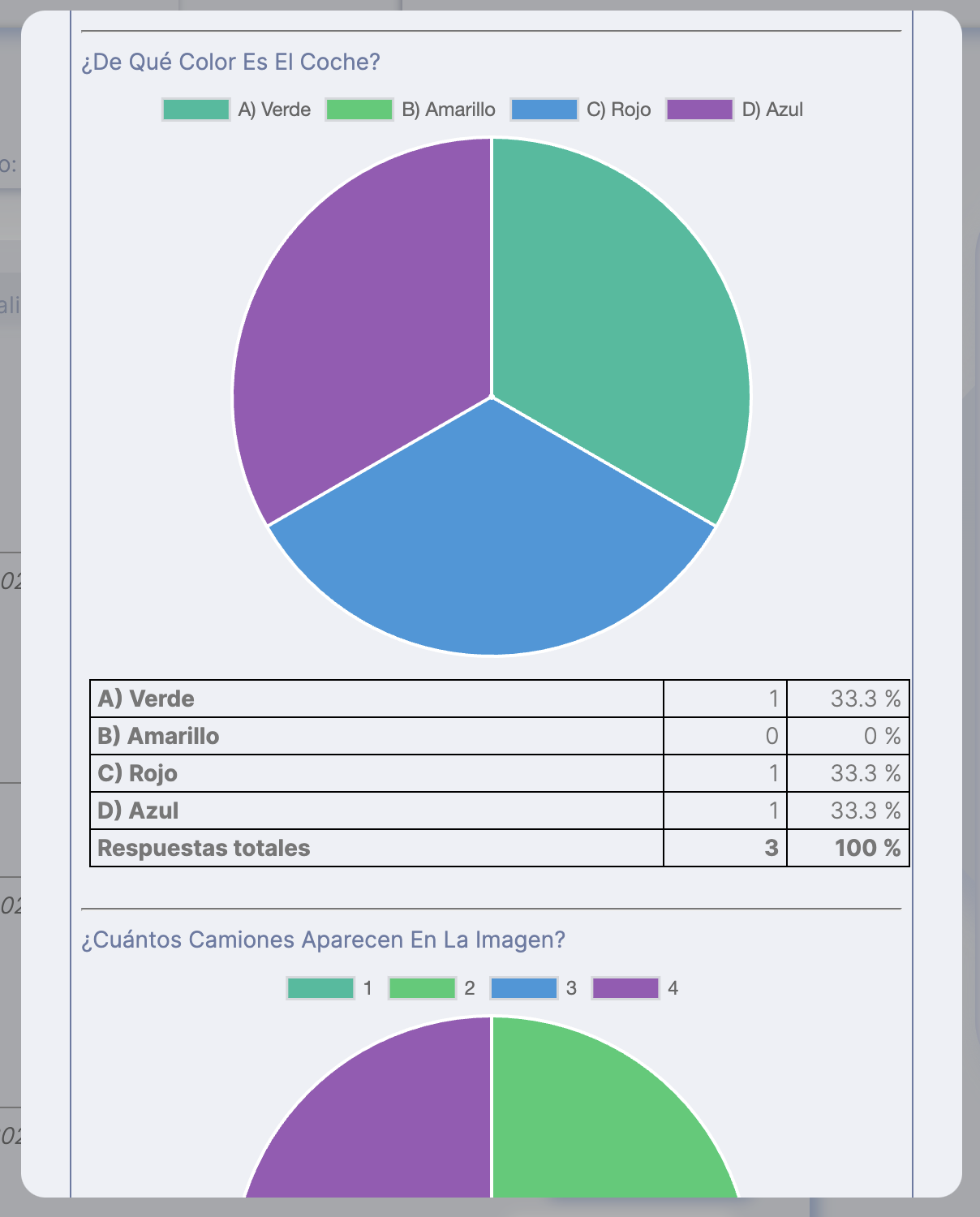
Here you cansee the results of the questionnaires you published by clicking "View results" or download the results into a .csv file.
Below is an example of results: