How to Integrate the Scoreapps AI Chatbot with Facebook Messenger
Introduction
The Scoreapps AI chatbot integration with Facebook Messenger allows you to serve your users directly from your Facebook page. Thanks to this connection, the messages you receive in Messenger will be managed by your Scoreapps AI assistant and will respond automatically according to the training you have configured.
Below are the steps to configure the integration.
Step 1 – Create a Facebook App
1. Access Facebook for Developers with your Facebook account and click on My Apps → Create App
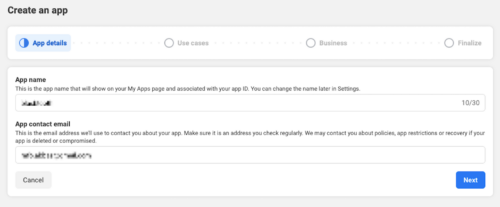
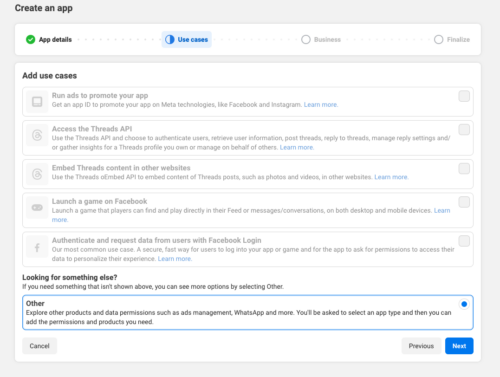
2. Select the use case that best suits your project.
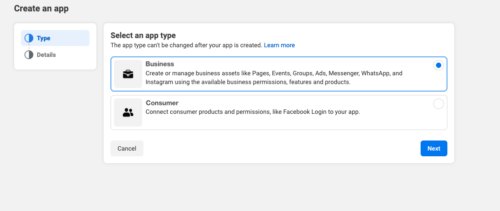
3. In the application type, choose Business and fill in the required information.
Upon completion, you will get an App ID and an App Secret. Save them because you will need them later.
Step 2 – Activate Messenger and obtain the access token
1. From the app dashboard, go to Add Products and select Messenger.
2. Choose the pageFacebook account that you want to connect to the Scoreapps chatbot.
3. Generate a Page Access Token for that page.
4. Write down the page name and access token.
Step 3 – Configure the webhook and Verify Token
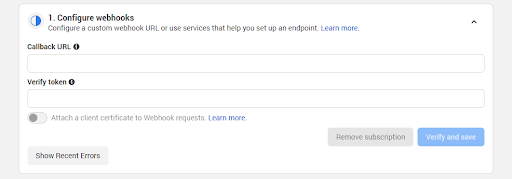
1. In the app settings, navigate to Messenger → Settings → Webhooks.
2. In “Callback URL” enter the URL of the webhook that Scoreapps will provide you when you add the Messenger channel (step 4).
3. Enter a Verify Token: it is aa secure chain that you define yourself and that later
will use in Scoreapps.
4. Select the events you want to receive (for example: messages, messaging_postbacks, etc.) and save the changes.
Step 4 – Set up the channel in Scoreapps
1. Access your Scoreapps account and enter the AI Agents section.
2. Edit the chatbot you want to connect and navigate to the Channels step.
3. Select Facebook Messenger in the channel list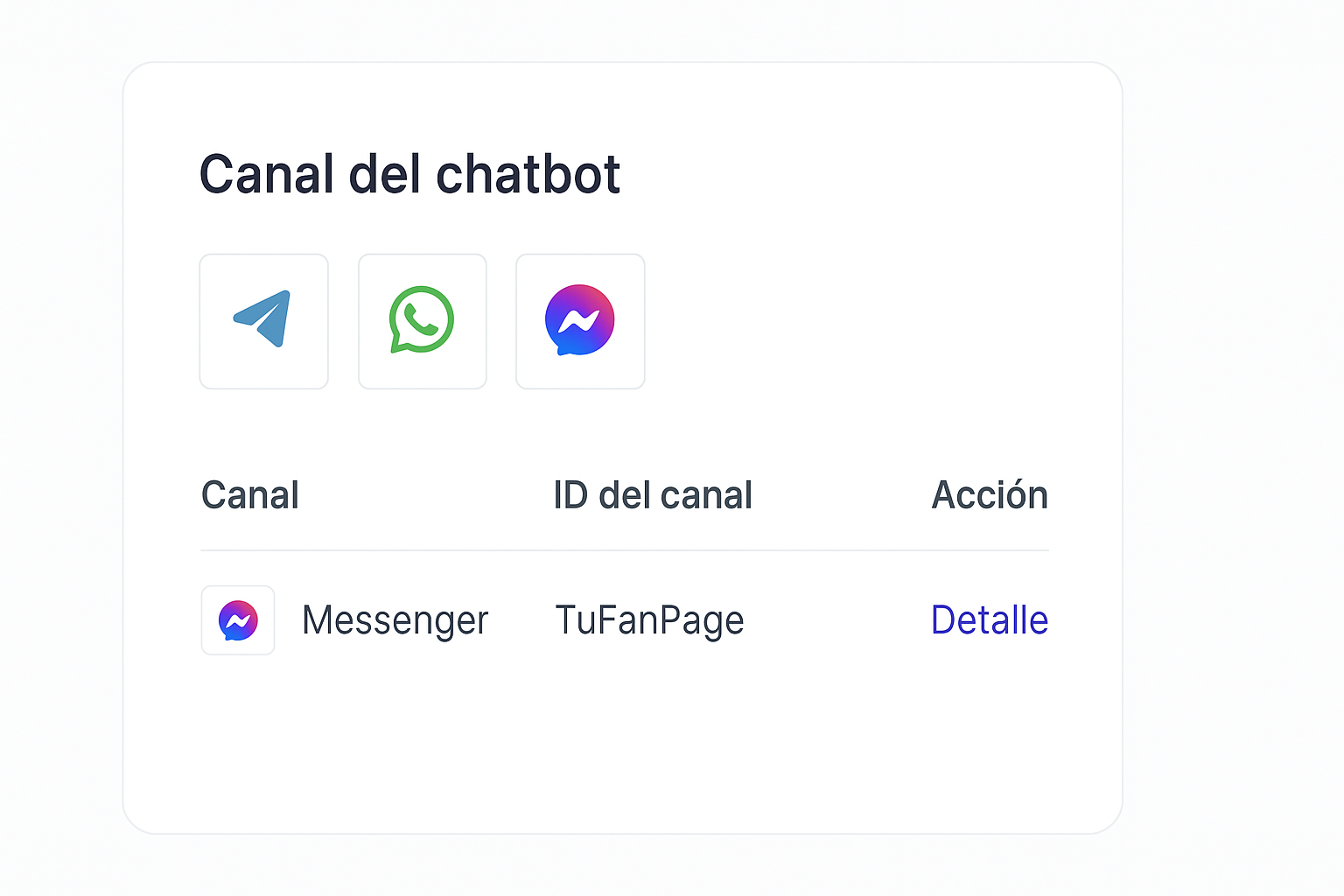
4. A form will open where you must fill out the following fields with the data obtained in the previous steps available.
• App ID (App ID).
• Secret App.
• Name of the page.
• Access Token.
• Verify Token (the same one you set up on Facebook).
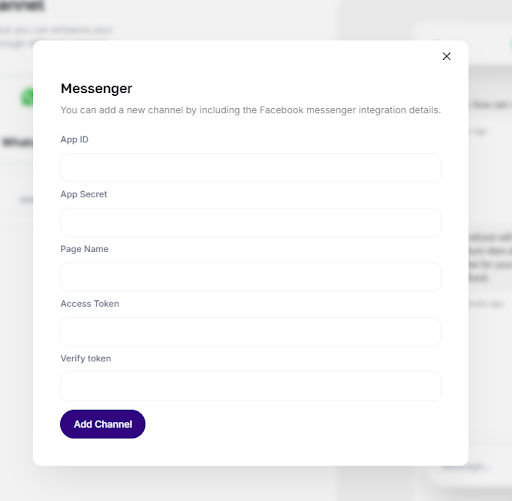
5. Tap Add channel to save. The Messenger channel will appear in the list of configured channels.
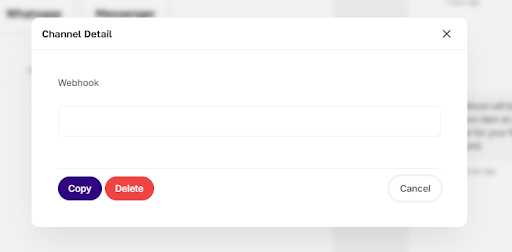
6. Click Detail to copy the Webhook URL to paste into the Callback URL field in the Facebook dashboard.
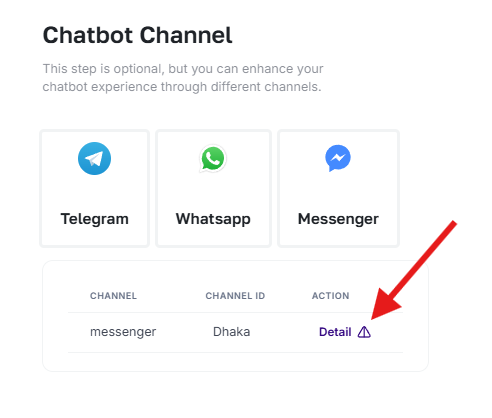
7- The webhook will be displayed, copy it and open the Facebook Developers app.
8. Now place the webhook in the callback URL of the Messenger API settings.
Popular Articles
How to Create an App for Restaurants (with or without Delivery)
Text Enter First Steps Once inside the platform, from the main dashboard you will find a series of icons on the left hand side menu. Just click on 'Apps'. Then click on 'Create App' and give it a name. Then you'll get to a screen where you choose the ...APPS: Radio
The function of Radio allows the addition of radio broadcast within its application. In addition to this function To add this function to your application go to step "Functions" and click on the icon "Radio": Once added you must name this new ...APPS: Webhooks
The advanced Webhooks feature lets you connect certain events that occur in your App by sending them to a URL called Webhook. You can use a free Webhooks service as Zapier to create automations that can help you with your App business. For example, ...APPS: Audio & Music
How to add this feature To add this feature to your application go to step "FUNCTIONS" and click on the " iconAudio": Then give this new section of the application a name. Then click on the + icon to add a new Playlist Then add a title and an image ...QR Promotions
This function would allow you to create discount coupons that would be unlocked by scanning a specific QR code. Once unlocked, the customer can use the discount whenever they want. The coupon would not appear in the application until the user has ...
Related Articles
AI Agents in Scoreapps
Introduction Scoreapps AI Agents are one of the most powerful features of the platform, designed to help you automate communication with your users and convert that interaction into real business results. An AI agent is not just a chatbot. It is a ...How to Integrate AI Agents with Telegram
Overview This integration allows you to connect your ScoreApps chatbot with Telegram, allowing users to chat with your AI directly in the app. How to configure the integration with Telegram: Step 1: Create a Telegram bot Open the Telegram app on your ...How to Integrate AI Agents with WhatsApp
Introduction The new integration with WhatsApp (Twilio) allows you to connect your AI Agents of Scoreapps to WhatsApp via Twilio, making it possible for users to talk to your AI bot directly in WhatsApp. IMPORTANT: integration is only possible with ...How to Connect an AI Agent to Shopify or WooCommerce
What this function does The option Shopping Assistant Connect your AI agent to a Shopify or WooCommerce store so it can respond using real information from your eCommerce. This allows you to provide more useful answers about products, catalog and ...How to Integrate Scoreapps with Your WordPress Blog
If you have a WordPress Blog, you can use this automation tool to send the generated content with the AI Text Editor automatically to your WordPress site, ensuring a smooth publishing process. Activate the plugin WordPress REST API Authentication In ...